Customer communication, made simpler.
One message.Every customer.
Reach the customers you already have. Send WhatsApp campaigns, schedule reminders, and track results from one simple platform, with setup support from our team.
- Guided setup. No technical team required.
- Opt-outs honoured, every time.
- Works with your own WhatsApp number
"Namaste Padma, our Diwali silk collection is in store. 15% off till Sunday. Sri Lakshmi Silks, Vijayawada."
To: Repeat customers, 2,148 people
Scheduled: Sun, 9:00 AM IST
Padma Reddy
+91 98•• •• 4521
Srinivas Rao
+91 94•• •• 1832
Lakshmi Naidu
+91 91•• •• 6092
Ravi Kumar
+91 97•• •• 8840
Anjali Varma
+91 99•• •• 7311
Suresh Babu
+91 93•• •• 2209
9 am and 9 pm
Illustrative data
The WhatsApp Business app runs out of room fast.
It works until your list grows. Then it quietly stops working, and nobody notices, because there is no report to tell them.
contacts per broadcast list, and only people who saved your number.
messaging customers individually when the list outgrows broadcast.
scheduling: someone has to be awake and tapping at nine in the morning.
reporting: no idea who received it, who read it, who ignored it.
replies pile up on one person's phone, with no way to share them with the team.
customer lists scattered across Tally exports and spreadsheets.
Everything your customers hear from you, in one place.
Tap any card to see how it works, with an example.
Four steps, and we do the first one with you.
- 1
We connect your number
We help you connect your WhatsApp number by scanning a code with your phone, and check your first messages with you.
- 2
Import customer data
Upload your existing spreadsheet or Tally export file. Contacts are cleaned and organized automatically.
- 3
Select and schedule
Choose who gets it, write or pick your message, and set the day and time you want it to go.
- 4
See who got it and who replied
Track delivered, read, failed and opted out, and answer the replies from one inbox.
- 1
We connect your number
We help you connect your WhatsApp number by scanning a code with your phone, and check your first messages with you.
Guided setup with our team
- Scan the code with your phone
- Number connected and tested
- First campaign sent together
- 2
Import customer data
Upload your existing spreadsheet or Tally export file. Contacts are cleaned and organized automatically.
customers_oct_tally.xlsx
PartyNamePhonePhone (+91)AmountOutstandingValid rows found
3,214
Duplicates removed
186
- 3
Select and schedule
Choose who gets it, write or pick your message, and set the day and time you want it to go.
Diwali collection
AudienceRepeat customers, 2,148 peopleMessageDiwali offerReadyDispatchSun 20 Oct, 9:00 AM - 4
See who got it and who replied
Track delivered, read, failed and opted out, and answer the replies from one inbox.
Diwali collection: results
Delivered
97.6%
Read
58.2%
Opted out
0.4%
Replies waiting12
Illustrative data
How to do each thing, step by step.
Pick what you want to do. Each guide has a small story, three steps, and what your customer sees on their phone.
Bring your customer list in from Excel or Tally
Your whole list in one tidy place in minutes, with repeats removed and every number in the same format.
A real-life example
Lakshmi, Sri Lakshmi Silks, Vijayawada
Lakshmi keeps 3,000 customers in an Excel sheet and a Tally report. She does not want to type them in again.
Open Contacts and choose Import contacts. Pick your Excel, CSV or Tally file.
Keryo checks the file first and shows how many people are good, how many are repeats, and what it could not read. Nothing is saved yet.
Tell Keryo these people agreed to hear from you, and confirm. They are added.
What you will notice: A clean list with every number in +91 format. Nobody has been messaged yet. You can add one person at a time too.
Import check
3,214 people are ready. 186 repeats were removed. 12 rows had no phone number and were left out.
What Lakshmi sees (example)
Send one message to many customers, at the time you choose
Write it once. Keryo sends it to each person with their own name, at the day and hour you pick, never in the middle of the night.
A real-life example
Lakshmi, on Diwali week
The new silk collection has arrived. Lakshmi wants every repeat customer to hear about it on Sunday morning, not to forward photos one by one.
Go to Campaigns and choose New campaign. Write your message. Use the name field so each person is greeted by name.
Choose who gets it and when, for example Sunday at 9 am.
Press Check before you send. Keryo tells you how many people will get it and who is skipped and why. Then schedule it.
What you will notice: A results page shows who got it, who read it and who did not, and who wrote back.
Only people who agreed to offers are sent offers. Keryo checks this again at the moment each message goes.
Sri Lakshmi Silks
Namaste Padma, our Diwali silk collection is in store. 15% off till Sunday. Sri Lakshmi Silks, Vijayawada. Reply STOP to opt out.
What the customer sees (example)
Groups, and a number of people at a time
Message your best customers first, or start with a small number of people to see how it goes.
A real-life example
Lakshmi, planning a VIP preview
Only her 128 best customers should see the pre-launch collection. And for a new offer she wants to try it on 50 people first.
On Contacts, tick the people you want and choose Add to group. Name it, for example VIP customers.
In a new campaign, choose that group. Or choose A number of people and set a number, such as 50.
For a number of people, pick who: the ones you have not messaged for longest, the newest, or a fair random draw.
What you will notice: Starting with 50 is gentler on a new WhatsApp number, and you see how people respond before sending to everyone.
A group never changes who agreed to hear from you.
New campaign
To: A number of people. 50 of the people who agreed, picked by longest since you last messaged them.
What Lakshmi sees (example)
A reminder on each person's own appointment or due date
Upload a list with dates. Each person gets their reminder at the right time before their own date.
A real-life example
Dr Rao, Rao Dental Clinic
Dr Rao's front desk spent every evening phoning tomorrow's patients. Now the list goes up once and the reminders go by themselves.
Open Reminders, choose New reminder list, write the message and say how early it should go, for example the evening before.
Upload the file with names, phone numbers and dates.
Press Start. Each person's reminder goes at their own time.
What you will notice: The front desk sees who got the reminder. A reminder whose time has already passed is skipped, never sent late.
Rao Dental Clinic
Namaste Lakshmi, your appointment at Rao Dental Clinic is tomorrow, 24 Oct, at 10:30 AM. See you then.
What the patient sees (example)
Every reply in one inbox, shared with your team
Customers' replies land in one place. Give a chat to someone, keep private notes, reuse your usual answers, and see what is waiting.
A real-life example
Lakshmi and her sister Padma
After the Diwali message, forty customers replied. They used to land on one phone. Now both sisters answer, and nobody answers the same person twice.
Open Inbox. You see each person's chat, with unread ones first.
Give a chat to a team member, add a private note (never sent to the customer), or pick one of your saved replies and change it if you like.
Mark the chat resolved. It comes back by itself if the customer writes again.
What you will notice: A card at the top shows how fast you answer, who is waiting, and what your team resolved this week.
WhatsApp lets you answer within 24 hours of the customer's message. Keryo shows how long is left.
Sri Lakshmi Silks
Is the blue one available in medium?
Yes Padma, it is in store. Come by this week and we will keep it for you.
What the customer sees (example)
Automatic replies for the questions you answer every day
When someone asks for your opening hours or your address, Keryo answers at once, even at midnight.
A real-life example
Venkat, Venkat Traders
Every morning there were ten messages asking what time the shop opens. Venkat wrote the answer once.
Open Auto-replies and choose New rule.
Type the words customers use, such as timing, open, address, and write your answer.
Try it in the test box, then switch it on.
What you will notice: You can also have a rule mark the chat as needing a person. Keryo never auto-answers someone who is asking you to stop.
Venkat Traders
What time do you open?
We open at 9 am and close at 8 pm, Monday to Saturday. See you!
What the customer sees (example)
See where each customer is, from first enquiry to done
A simple board of stages so nobody who asked for a quote gets forgotten.
A real-life example
Venkat, who sends quotes to shops
Venkat sends fifteen quotes a week and loses track of who answered. He keeps each shop on a board.
Open Pipeline. The stages are New, Talking, Quote sent, Won and Lost. Rename or add your own.
Move a customer when something happens, from the card or by ticking people on Contacts and choosing Move to stage.
Choose 7, 30 or 90 days to see how many moved on from each stage.
What you will notice: Only your team sees the stages. Moving someone sends no message and changes nothing about what they agreed to.
Pipeline
Quote sent: 9 people. Talking: 14 people. Won this month: 6 people.
What Venkat sees (example)
A short run of messages that follows up for you
When a customer reaches a stage, Keryo sends a gentle follow-up after the days you choose, and stops the moment they reply.
A real-life example
Venkat, after sending a quote
Venkat used to remember to chase every quote after a day. Now a quote that sits for a day gets a friendly nudge automatically.
Open Journeys and choose New journey. Choose what starts it, for example someone enters Quote sent.
Add the steps: a message, a wait of one day, another message. Keep it short.
Start it. Anyone who replies, opts out or is erased leaves the journey at once.
What you will notice: You see how many people are on the journey, how many finished, and how many stopped.
In early access: we switch it on with you. Journeys send several messages to one person, which raises the chance of WhatsApp restricting a number, so we keep them short and start small.
Venkat Traders
Hi Suresh, just checking if you had a chance to look at our quote. Happy to answer any questions.
What the customer sees (example)
Who got it, who read it, and when people read soonest
After every campaign, see delivered, read, failed and opted out, and who wrote back.
A real-life example
Lakshmi, the Monday after Diwali
Lakshmi wants to know whether the Sunday message was worth it, and who to follow up with.
Open the campaign. The top shows delivered, read, failed and opted out.
Open Who got it to see each person and when they read. Download the list for Excel if you want it.
When you plan the next campaign, Keryo can suggest the hours your customers read soonest, once there is enough history to say.
What you will notice: Figures only come from your own campaigns. Keryo says nothing until there is enough to say.
Diwali collection
Delivered 1,962. Read 1,204. 38 people wrote back within a day. 9 opted out.
What Lakshmi sees (example)
Let your billing or booking software send updates
A payment is received, and the customer is told on WhatsApp straight away, without anyone typing.
A real-life example
Venkat's accountant
When a retailer pays, the accounts software knows. Venkat wants the retailer to get a thank-you at once.
The owner opens Connected software, makes a secret key and chooses what it may do.
Give the key, with the developer guide Keryo prepares for you, to whoever looks after your software.
From then on the software sends messages like payment received or order confirmed. You can switch the key off at once.
What you will notice: These updates only reach people who agreed to updates, and only within sending hours.
Venkat Traders
Thank you, we have received your payment of ₹24,500. Venkat Traders.
What the retailer sees (example)
Connect your WhatsApp number, and start small
We help you connect your own number by scanning a code with your phone, then start gently so your number stays healthy.
A real-life example
Lakshmi, on day one
Lakshmi uses a spare number that has been on WhatsApp for a few weeks, not her main shop number.
Open the WhatsApp page and scan the code with your phone, the same way you link WhatsApp Web. We do this with you.
For the first days, message only people who know you and expect to hear from you. A new number starts at 20 messages a day and grows over about two weeks.
Keep your messages personal and useful, leave out links at first, and watch the replies. If people complain, pause.
What you will notice: If the connection drops, messages wait and you can reconnect in a minute with a new code.
Keryo connects your number the way WhatsApp Web does. It is not the official WhatsApp Business Platform. WhatsApp can restrict or ban a number that sends in ways it dislikes, and Keryo cannot undo that. We lower the risk; we cannot remove it. Use a number you can live without.
WhatsApp number
Connected. Today's limit for this number: 20 messages.
What Lakshmi sees (example)
Built for businesses that already run on WhatsApp.

New arrivals, offers, seasonal campaigns and repeat-customer messages.
Keep regular shoppers informed when festival collections land in store, without sending manual photos to each contact one by one.
Appointment reminders the evening before, service updates and follow-ups.
Send schedule confirmations to tomorrow's patient list and see which reminders were delivered, so the front desk spends less time on phone calls.
Rao Dental Clinic
Appointment reminder
Namaste Lakshmi, your appointment at Rao Dental Clinic is tomorrow, 24 Oct, at 10:30 AM. See you then.
6:00 PM
Example message
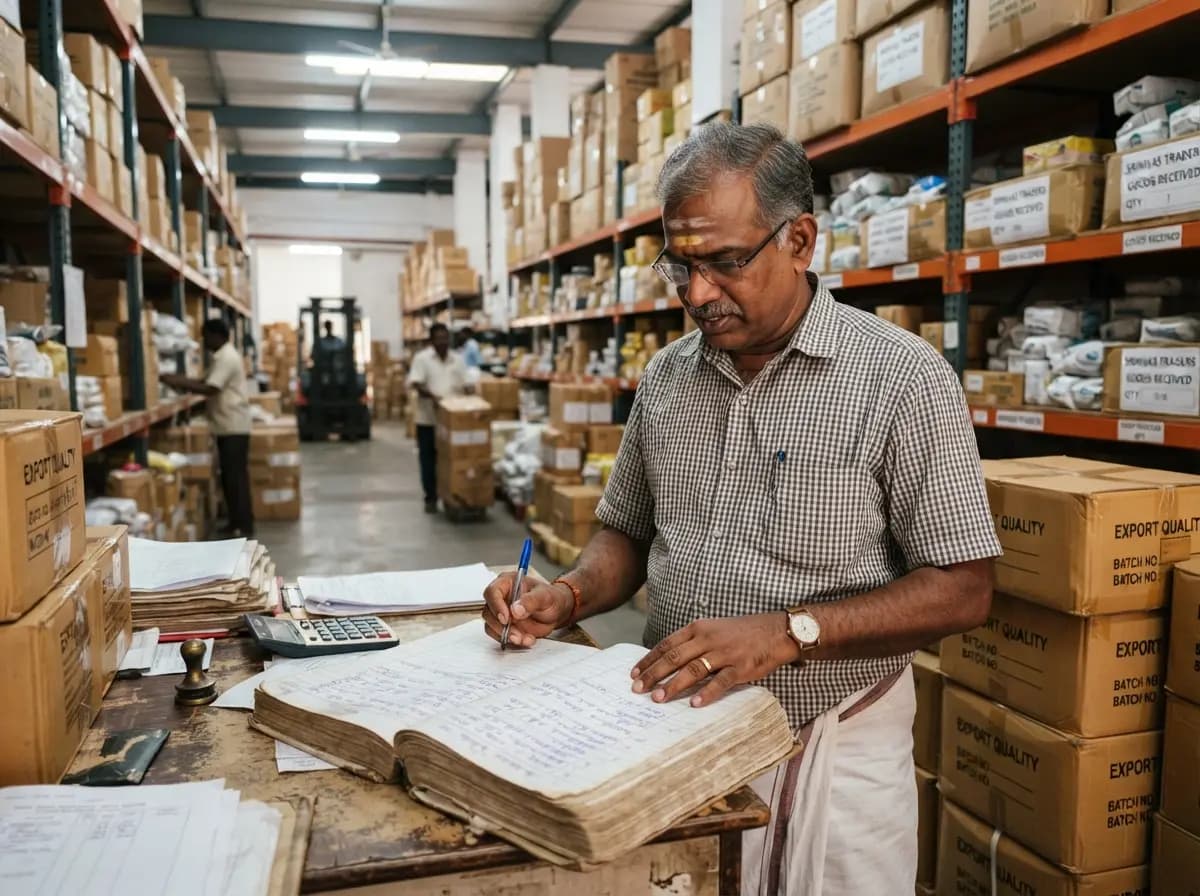
Outstanding-payment reminders, order confirmations and dispatch updates.
Direct party reminders straight from monthly ledgers. Give retailers notice of due dates and lorry receipt dispatches smoothly.
Which message worked, and who read it.
Sent
12,480
Delivered
97.6%
Read
58.2%
Opted out
0.4%
| Campaign | Group | Sent | Delivered | Read | |
|---|---|---|---|---|---|
| Diwali collection | Repeat customers | 2,148 | 98.1% | 61.3% | |
| Payment reminder Oct | Parties with dues | 214 | 99.5% | 72.0% | |
| Appointment reminders | Tomorrow's bookings | 86 | 100% | 88.4% |
Illustrative data. Your own numbers replace these from your first campaign.
Built around the rules that protect your number.
This is how Keryo is designed to work. Keryo is in early access, and your onboarding call covers what is live today.
Consent recorded, not assumed
Opt-in timestamps and source records are maintained for every contact on your list.
STOP is honoured
When a recipient replies STOP, they are excluded across all future campaigns immediately.
Quiet hours and days
Messages are held automatically outside business hours so customers are never disturbed late.
Checked at the moment of sending
Each number is checked against opt-outs right before it is sent, not when the campaign was created.
Slow, steady sending
A new number starts with a small daily limit, messages go out a few seconds apart, and one customer gets at most one offer a day.
Your number's connection watched
The WhatsApp page shows whether your number is connected. If it drops, messages wait and you can reconnect in a minute with a new code.
An honest word about your WhatsApp number.
Messages go from your own number
Keryo connects your WhatsApp number the way WhatsApp Web does. It is not the official WhatsApp Business Platform, which WhatsApp offers separately.
WhatsApp can restrict a number
WhatsApp can warn, limit or ban a number that sends in ways it dislikes, and Keryo cannot undo that. We lower the risk with slow sending, small daily limits for a new number, quiet hours and only messaging people who agreed. We cannot remove it, so use a number you can live without.
The official route is where we are heading
The official route removes this risk. We are working towards it and will ask you before moving your number. Keryo's own terms are agreed in writing before setup begins.
Where Keryo is going next.
Each ships when customers ask for it. Nothing here is promised with a date.
Let's get your business messaging-ready.
Tell us about your business and customer communication needs. We'll help you understand the setup process and the right way to get started.
Getting started
What is Keryo?
Keryo is a WhatsApp customer-messaging platform built specifically for businesses in Andhra Pradesh and Telangana who have outgrown standard WhatsApp broadcast lists. It lets you schedule campaigns to your own customers, see who got and read them, keep replies in one inbox, and organise customers into groups, without needing an internal IT department.
Who is it for?
Retail shops, textile emporiums, medical clinics, and wholesale distributors who already communicate with hundreds or thousands of customers on WhatsApp and need a dependable, compliant way to manage outreach.
Do I need a technical team?
No technical team is required. Our team connects your WhatsApp number with you, and helps with your first campaign.
How does setup work?
We connect your WhatsApp number by scanning a code with your phone, import your customer list, and send your first campaign together with you.
How do I book a demo?
Use the form on this page. Our team will arrange a session where you can see Keryo with a sample of your own contact list.
Using Keryo
Can I import spreadsheets or Tally exports?
Yes. You can upload standard Excel, CSV, or exported Tally ledger files directly. The platform automatically cleans, validates, and de-duplicates your contacts.
Can I schedule campaigns?
Yes. You can prepare messages days or weeks in advance and schedule them for specific dates and times, respecting customer quiet hours.
What about replies, AI writing and tickets?
Customer replies arrive in a shared inbox today. You can give a chat to a team member, mark it resolved, keep private notes, and use saved replies and labels. You can also write keyword auto-replies for common questions such as opening hours, with a person taking over when needed. AI-assisted message writing, automatic Tally sync and customer tickets are on our roadmap and marked "Coming next."
Can my billing or booking software send messages through Keryo?
Yes, if it can call a web address. The owner makes a key in Keryo, chooses what it may do, and gives it to whoever looks after the software, along with a developer guide that already has your address and your messages filled in. It can add contacts and send update messages such as "payment received", only to people who agreed to updates and only within sending hours, and you can switch the key off at once.
Your WhatsApp number and consent
Is Keryo the official WhatsApp Business Platform?
Not yet. Today Keryo connects your own WhatsApp number the way WhatsApp Web does. WhatsApp does not approve of this route, and it can warn, limit or ban a number that sends in ways it dislikes. Keryo lowers the risk: slow sending, a small daily limit for a new number, quiet hours, only people who agreed, and STOP always honoured. It cannot remove the risk, so use a number you can live without and start with a few people. We are working towards the official route.
What does it cost?
Messages go out from your own WhatsApp number, so Keryo does not add a per-message WhatsApp charge. How Keryo itself is charged is agreed with you in writing before setup. This page does not quote prices.
How do consent and opt-outs work?
When a customer replies STOP (in English, Hindi or Telugu, or a word you add), Keryo holds that number out of all later campaigns. Consent records are kept for every contact.
Your customers are already on WhatsApp. Let's make staying in touch simpler.
We'll guide you through setup and help you prepare your first customer communication campaign.